Playbook · 6 guides, in order
Settings:
set it once, stop blaming it.
Camera, deadzone, sensitivity, and the hardware problems that hide behind them. Each guide gives real starting numbers and the reason for each one, so you can tune from a known baseline instead of copying a pro config built for somebody else’s hands.
Real talk: Settings are worth twenty minutes, once. After that, changing them every losing session is a way to avoid looking at your decisions. Get a sane baseline, rule out a bad stick, then go back to the gamesense guides.
Settings LabGet your numbers in four clicks.Input, stick condition, playstyle, level. Camera and controller settings with the reason for each value.Open it →Stick Drift TestMeasure your stick, get your deadzone.Runs in the browser on the Gamepad API. Tells you how far each stick rests off center.Open it →
Part 01 / 03
Dial it in
Start here. Three guides, one sane baseline.
- Best Rocket League Camera Settings (2026) — FOV, Distance & Stiffness by PlaystyleFOV, distance, height, angle and stiffness, with starting numbers by playstyle.
 Best Rocket League Controller Settings: Deadzone & SensitivityDeadzone, steering and aerial sensitivity, triggers, and a tuning order that actually converges.
 Rocket League Controller Deadzone: Best Settings & Drift FixThe deadzone deep dive: controller vs dodge deadzone, and how to tune around a worn stick.
Part 02 / 03
When the controller is the problem
Sometimes it really is the hardware. Prove it before you pay for it.
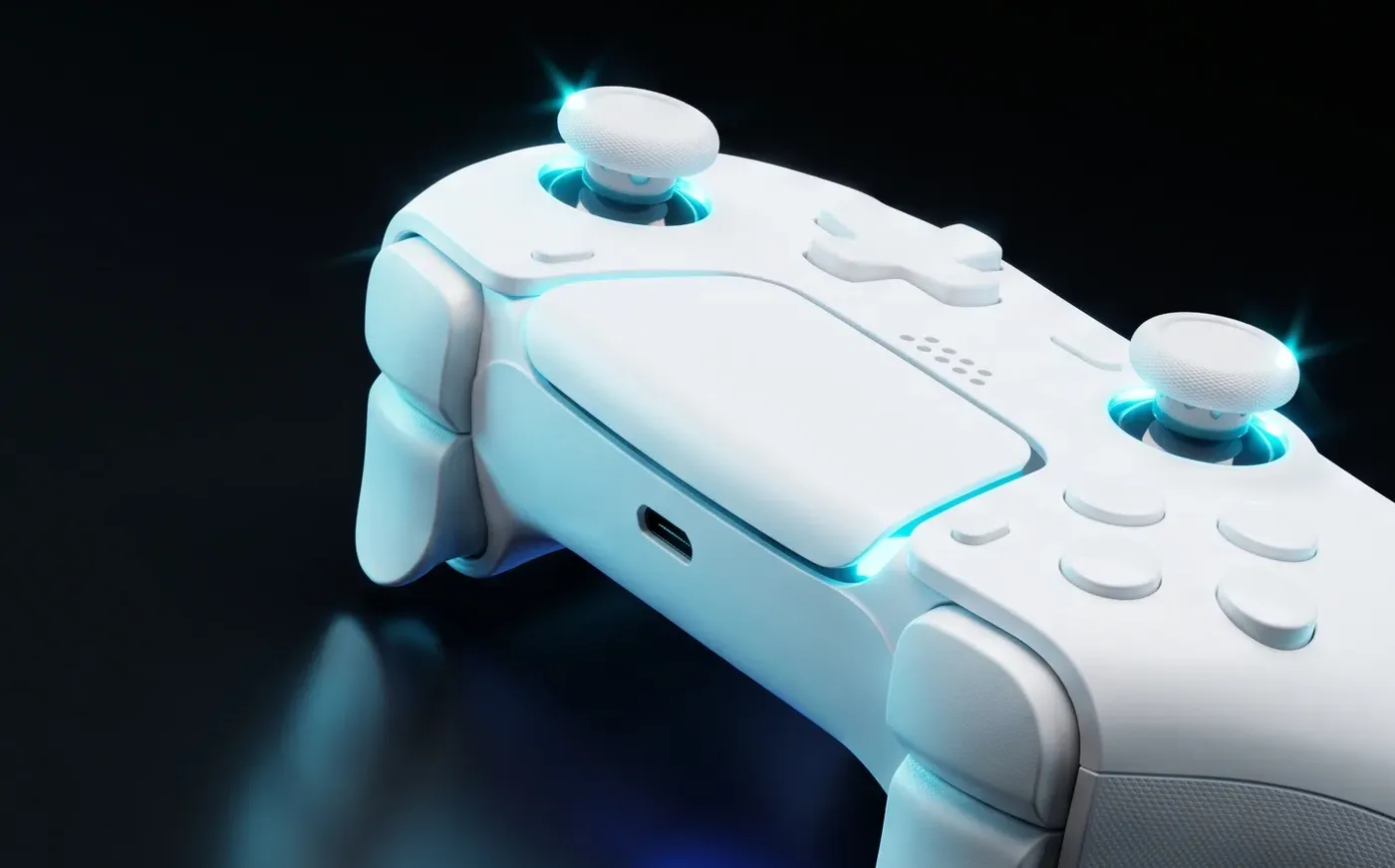 Rocket League Stick Drift: Test It, Hide It, or Replace ItCar creeping, camera wandering? Prove it is drift, hide it with deadzone, or know when to replace.
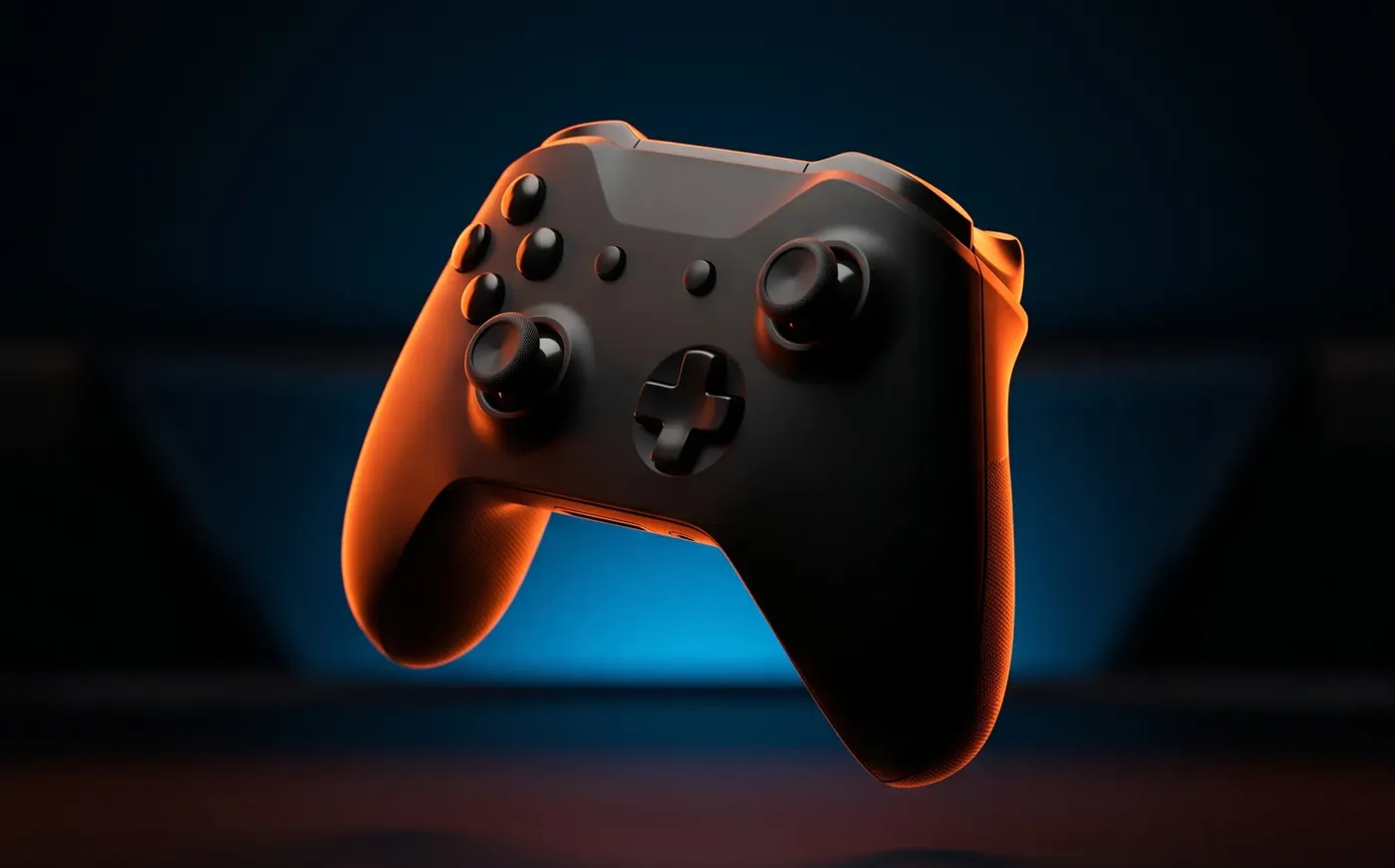 Rocket League Controller Not Working? Fix It by SymptomNot detected, double inputs, wrong buttons. Find your symptom and run the one check that splits hardware from software.
Part 03 / 03
Before you buy anything
Read this before any gear review on the site.